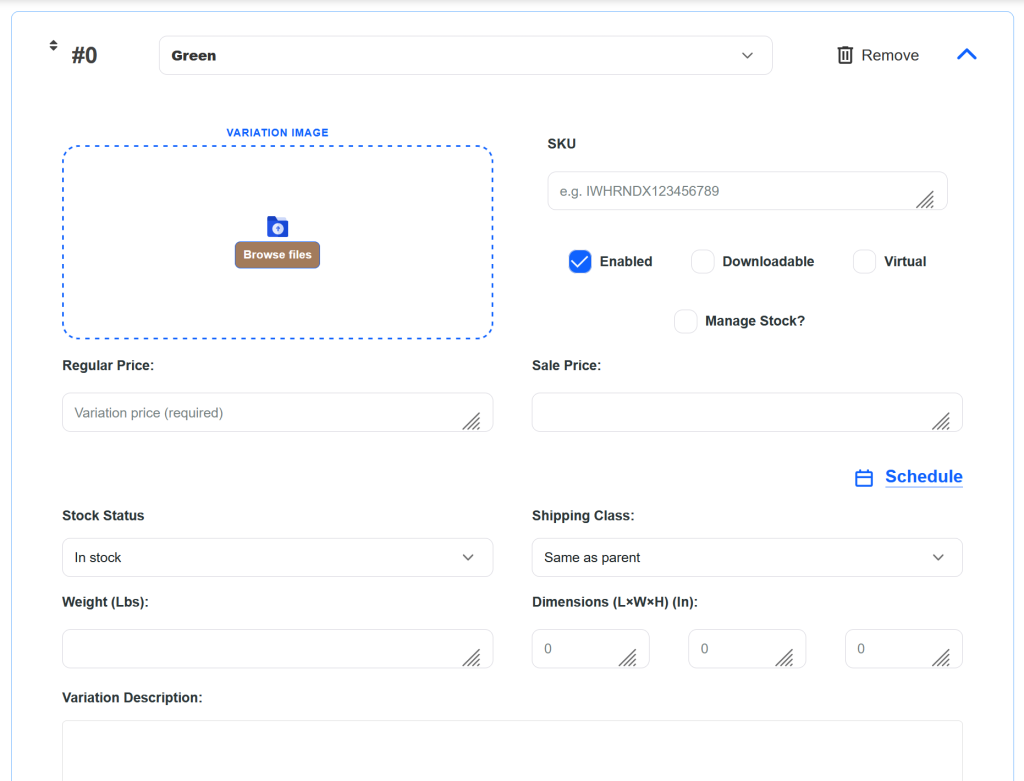
Add/Edit Products Page
The Basics
1. On the Vendor Dashboard, click on Products in the top menu.
2. Click +Add Product
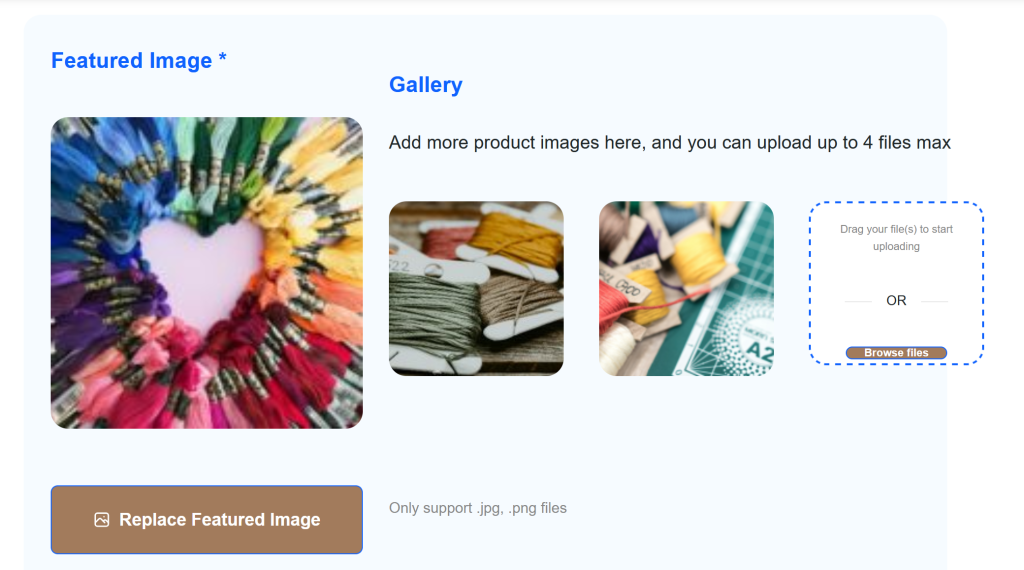
3. Choose a main featured image on the left side, and optionally add any additional images on the right side for the ‘gallery’.
Note that your images may look a bit blurry here in the preview – they will look fine on the product page!
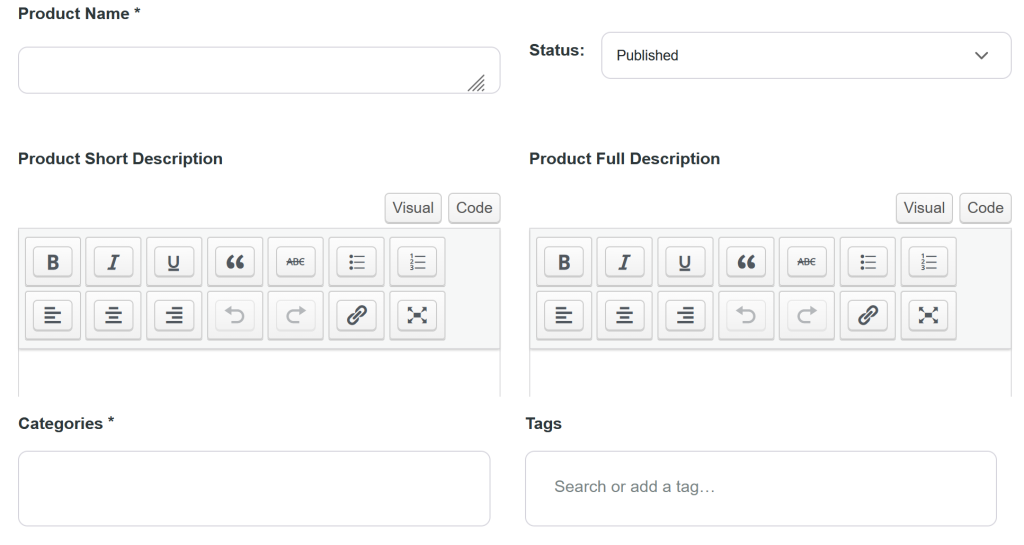
4. Set your product’s name, short description, long description, categories, and tags
- Short description will appear next to the image gallery at the top.
- Long description will appear in the tabs lower down on the page.
- Both description fields support rich text editing – bolding, lists, emojis, etc. I recommend using those in the Long description primarily!
- Categories are more controlled and cannot be added by sellers – please reach out to me if you’d like new categories added.
- Start typing in the tags field to either select ones that exist or add your own on the fly.
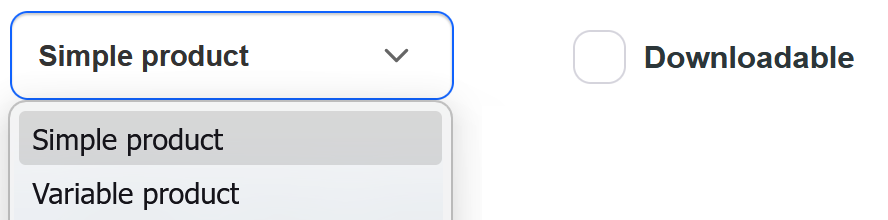
In the next section you have the ability to select a few different product types. First, select if this is a simple or variable product. If you offer the same product in multiple colors, sizes, etc, you will likely want to add a variable product. If you have just one type, or would prefer to list different variations separately, choose simple. If you are offering a digital product, like a PDF pattern, check the Downloadable box. All of these options will change a few other things available next, so read on to figure out which is best for your products.
Simple Products
Pricing
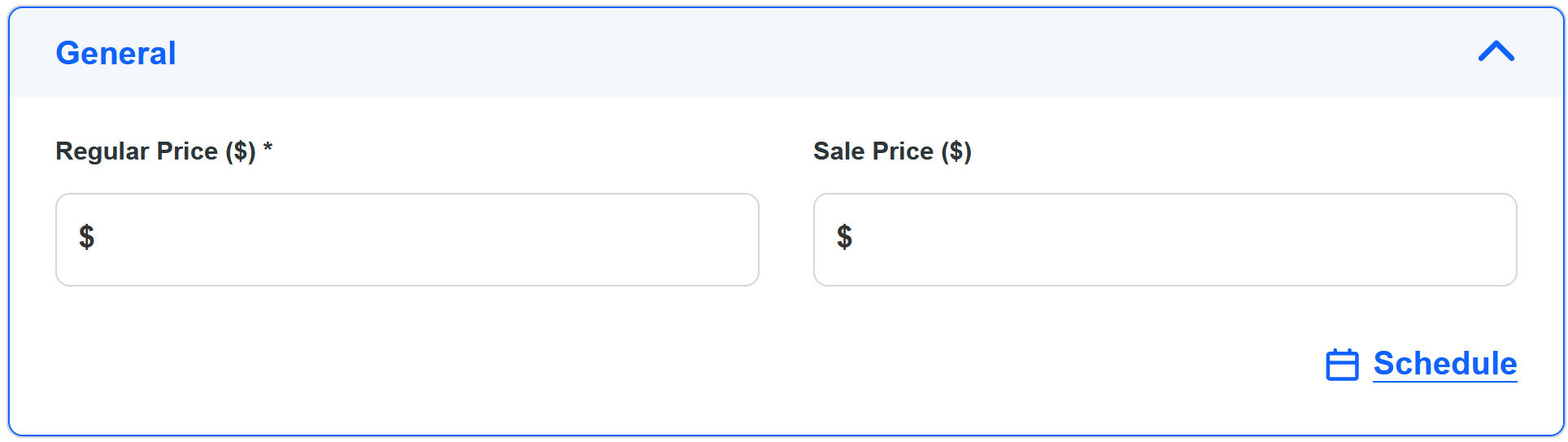
Pricing options are basic here. You can offer a regular price and optionally a sale price. You can also schedule the sale price so that it goes live and comes off sale at certain times. The product will remain published, it will just fall back to the regular price afterwards.
Customization
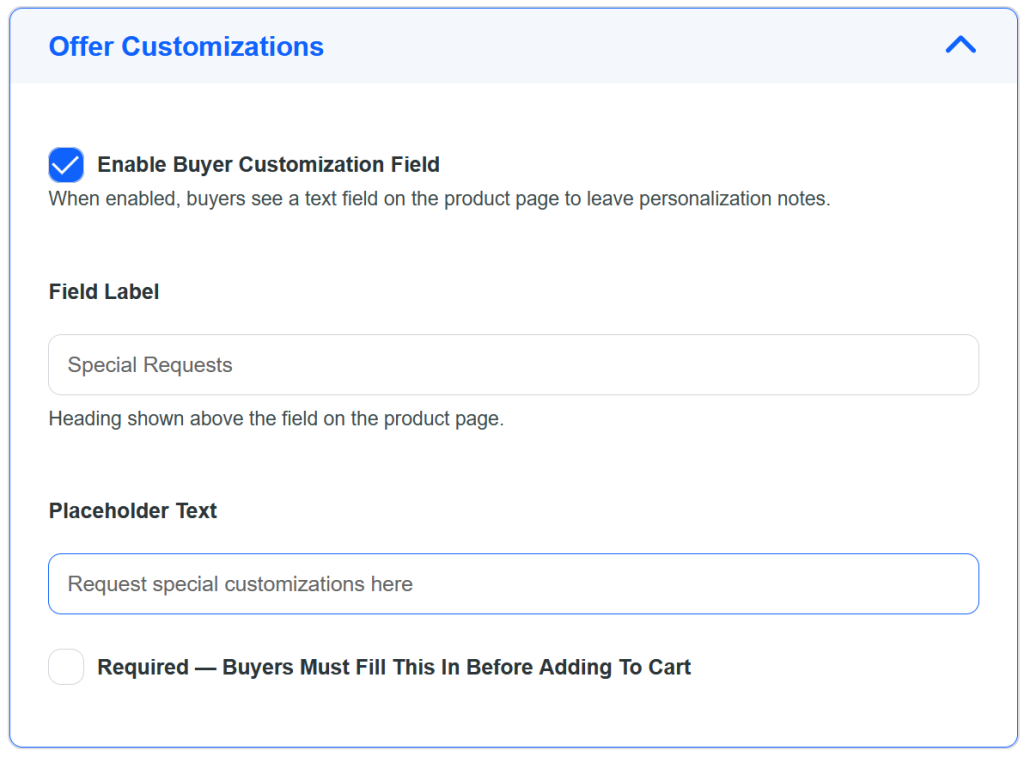
You can offer the ability for purchasers to request customizations, or even make them required, when purchased.
Attributes
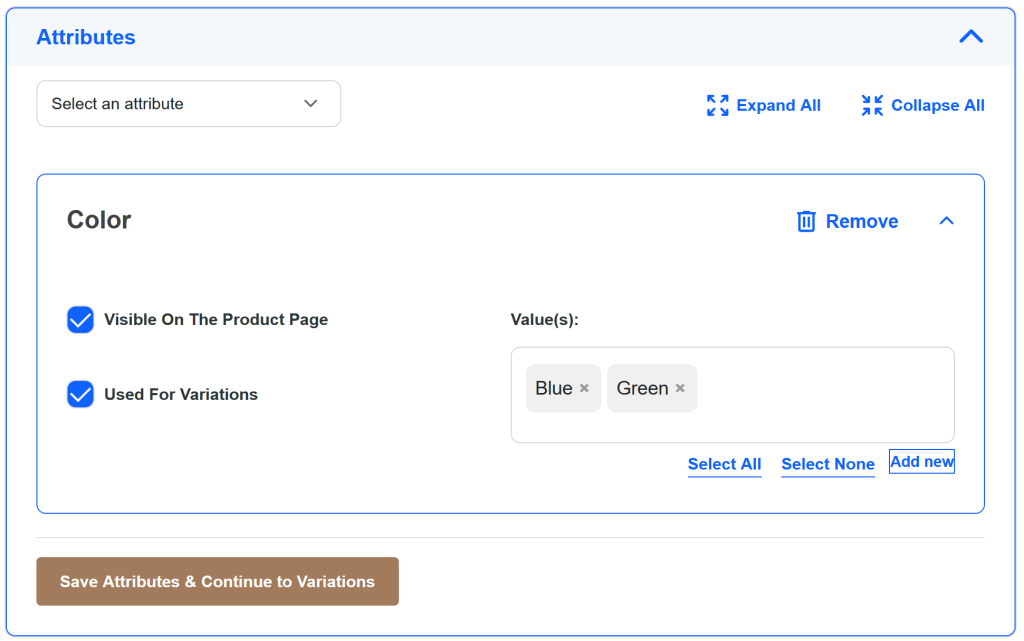
Attributes serve two purposes. For simple products, they are a way for buyers to filter and find specific products more easily. You can select from existing ones, or add new ones as needed with the Add New option.
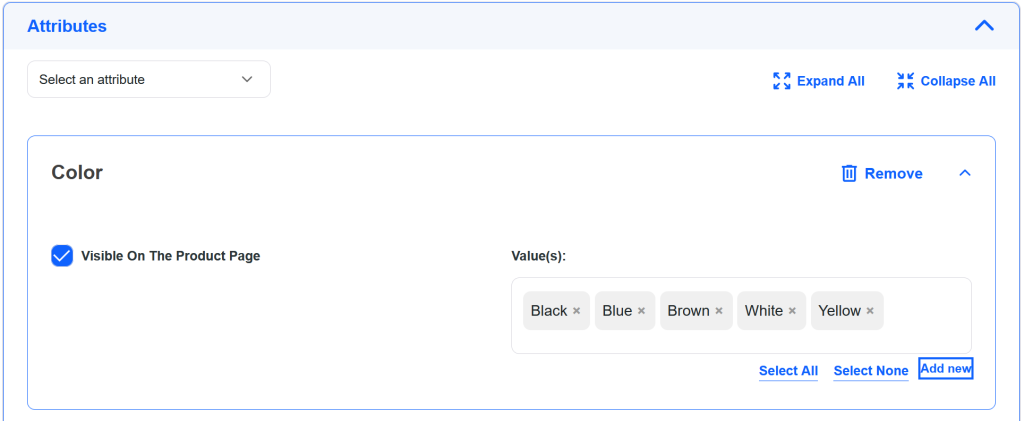
Attributes are also used for variations, which we will explain below.
Shipping
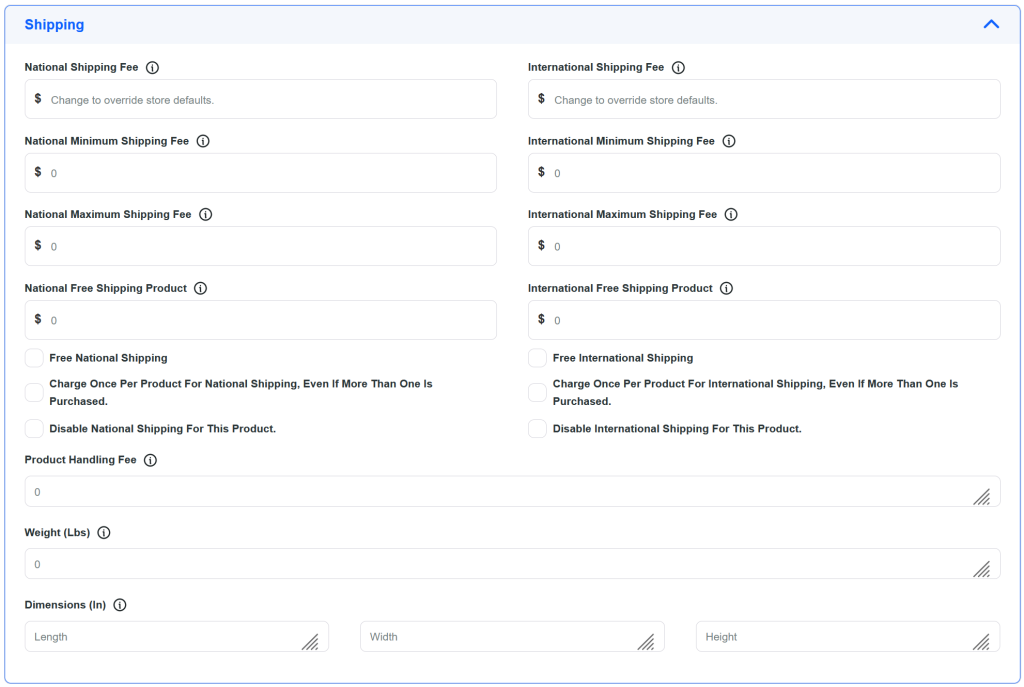
The Shipping section has a lot of options! For both National (aka Domestic) and International, you can set the shipping fee per product, a minimum and maximum (in case someone orders multiple products, you might want to set a max), and a threshold for free shipping. You can set a handling fee (ie to cover packing), and offer information about the size and weight of the package.
It’s strongly recommended that you set up Shipping options at the profile level and only override at the product level as needed, to keep maintenance as easy as possible.
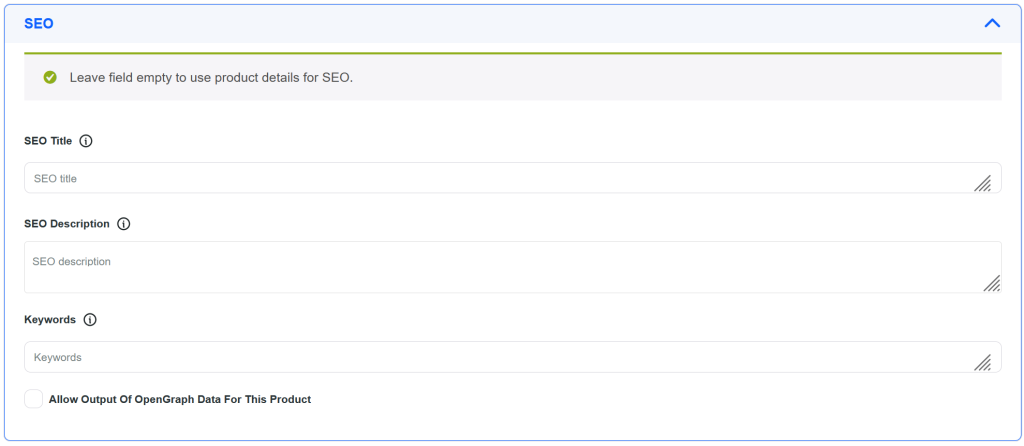
SEO Options
Completely optional, these fields may help search engines find and surface your product pages more effectively.
Downloadable Products
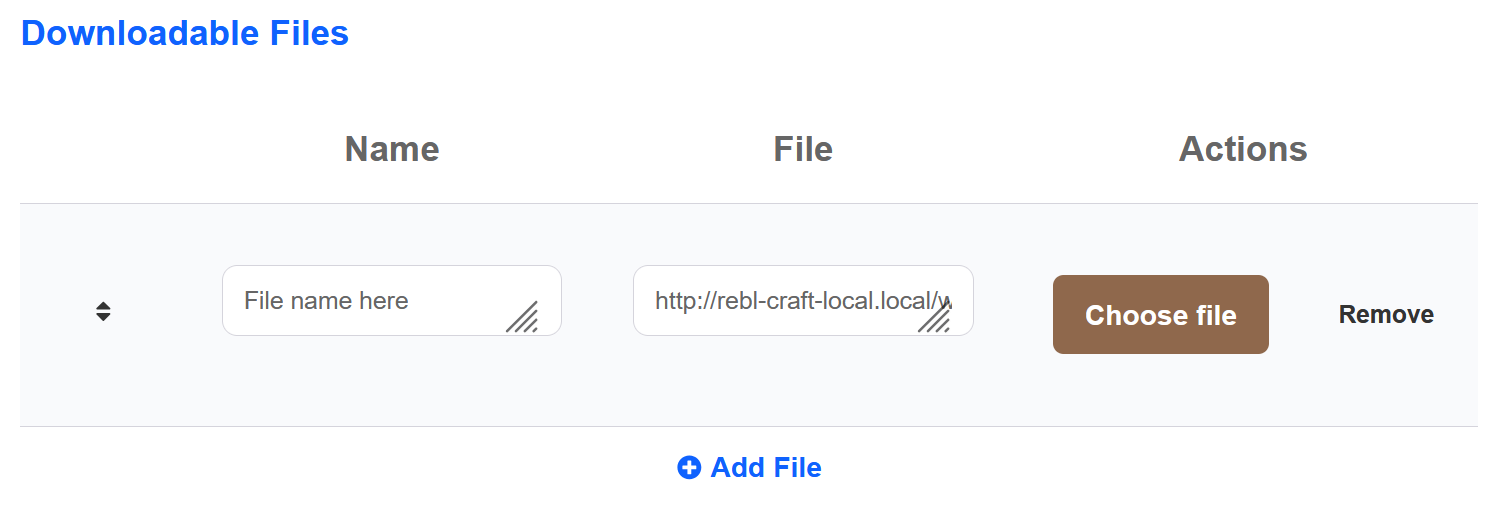
Checking the Downloadable box will display fields for you to upload and add files. These files will automatically be made available for download, once someone has purchased your product.
Variable Products
When you select the Variable Product option from the drop down, the following options will appear.
In the Attributes section, you’ll have the option to set them as ‘Used For Variations’. Once you’ve added the attributes for the variations, click ‘Save Attributes & Continue to Variations’. Make sure you have already filled in the product name, image, descriptions, and category before doing so or you will get an error! This button will save the page and reload to the Variations section.
Click Add Variation for each of the color or other type of variations you offer. You will get a sub-drop-down for each of these, which will allow you to set things like a specific image, price, stock status, etc for each one. You can also select a default variation to show or leave it blank, which will require the user to select a specific one before adding to their cart.